
1. Purpose of this article
This article explains how the Service Team should review and process customer tax‐exemption certificates in PSPROD, and how to confirm that the customer’s tax status is correctly reflected on the account. It also covers when to request corrective invoicing (credit & rebill) and how to communicate final outcomes to the customer.
2. What counts as a valid tax‑exemption certificate?
To qualify a customer for sales‑tax exemption:
- The certificate must be state‑issued.
- Accept resale, exemption, or direct‑pay certificates issued by a U.S. state or territory’s Department of Revenue (or equivalent agency).
- The form may be state‑specific or a multi‑state uniform exemption certificate as long as it is completed for the customer’s state.
- Do NOT accept federal income‑tax documents as sales‑tax exemption.
- Items like IRS 501©(3) determination letters, W‑9 forms, or federal income‑tax exemption letters do not exempt the customer from state or local sales tax by themselves.
- These federal documents can be kept on file if needed, but they cannot be used to change the customer’s sales‑tax status in PSPROD.
- The certificate must be complete and readable. At minimum, verify:
- Customer / organization legal name
- Billing or service address
- State issuing the exemption
- Exemption or permit number (if the state uses one)
- Signature and date (if required by that state’s form)
- The certificate must be current (not expired).
- Check the effective and expiration dates on the form.
- If the certificate is expired, request an updated certificate from the customer before changing the account or requesting invoice corrections.
- If the certificate has an ongoing/blanket validity statement instead of a specific end date, treat it as current unless your internal policy states otherwise.
If any of the above are missing, expired, or unclear, email the customer to request a corrected or updated certificate before changing the account status or crediting invoices.
3. Before you start: information you’ll need
When you receive a tax‑exemption certificate from a customer, gather the following:
- Customer ID (from the order, invoice, or the Customer Lookup screen)
- Customer / school / center name
- State where the product is being shipped or used
- The exemption certificate file (PDF/image) attached to the case, email, or shared location
- Any related order numbers or invoice numbers the customer is asking about
Having this ready will make it easier to verify and update the account and decide whether corrective invoicing is required.
4. Step 1 – Review the certificate itself
- Confirm the document type
- Look for state Department of Revenue branding or a state‑specific exemption form name (for example, “State of North Carolina – Sales and Use Tax Exemption Certificate”).
- If the document is an IRS letter, W‑9, or other federal income‑tax form, it cannot be used to mark the customer as tax‑exempt. Follow your team’s escalation/response template to explain this to the customer.
- Confirm the state matches the customer’s tax location
- The exemption should match the state where the customer is being taxed (usually the ship‑to state).
- If the customer is using a multi‑state certificate, make sure the relevant ship‑to state is listed or covered.
- Check that the form is signed and dated (if required)
- Many state forms require a signature and date.
- If the form is clearly incomplete, reply to the customer requesting a completed version before updating the account.
- Confirm the certificate is not expired
- Verify that today’s date falls within the effective and expiration dates printed on the form.
- If the certificate is expired, request an updated certificate. Do not request credits or change the tax status based on an expired certificate unless directed by your tax team.
Only continue once you have a valid, readable, current state‑issued exemption certificate.
5. Step 2 – Verify exemption status in Customer Lookup (Taxable flag)
Use Customer Lookup to see whether the customer is currently taxable or exempt.
- In PSPROD, navigate to: Main Menu ▸ Customers ▸ Customer Lookup.
- Enter the Customer ID and click Search.
- On the results screen, locate the Taxable field in the lower portion of the page (next to the Bill Sorting Group).
- In the example screenshot, this field is highlighted and shows Taxable: Yes.
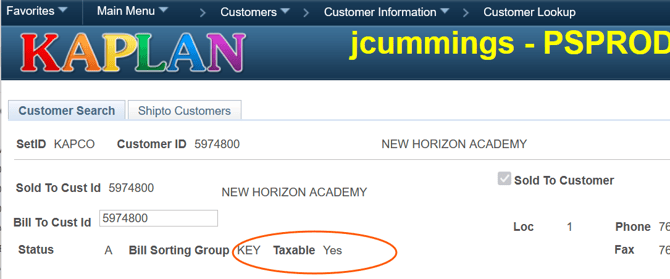
- Interpret the value:
- Taxable: Yes – the customer is currently being charged sales tax.
- Taxable: No or a similar exempt indicator – the customer is already flagged as exempt.
If the customer is already exempt: compare the exemption certificate on file with what the customer sent. If it is consistent (same organization and state), no change to the account is required. Document your review in the ticket and confirm to the customer that their exemption is already on file.
6. Step 3 – Verify exemption status in Customer Information (Cust – Exempt tab)
Next, confirm that the exemption certificate is recorded correctly on the Cust – Exempt tab.
- Navigate to: Main Menu ▸ Customers ▸ Customer Information.
- Search for and open the correct Customer ID.
- From the tabs across the top of the Customer Information page, select Cust – Exempt.
- In the example screenshot, this tab is highlighted on the far right.
- On the Tax Exemption section of this tab, review the Exemption Certificate field.
- In the example screenshot, this field is circled and shows TAXABLE.
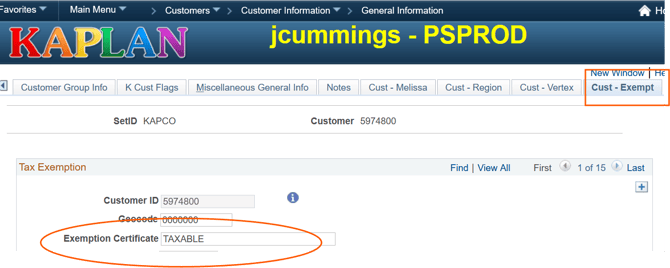
Interpretation of the Exemption Certificate field (examples):
- TAXABLE – no exemption certificate is recorded; the customer should be charged tax.
- EXEMPT / specific code – there is an active exemption on file.
- Other codes – follow your local coding guide if you use multiple exemption codes (for example, resale vs. government).
Key check: The value here should match what you see on the Customer Lookup screen for the Taxable flag.
7. Step 4 – Decide if an update is needed
Use the table below to determine your next action.
| Customer Lookup – Taxable field | Cust – Exempt – Exemption Certificate | What this usually means | Service team action |
|---|---|---|---|
| Taxable = Yes | Exemption Certificate = TAXABLE | Customer is set up as taxable and no exemption is on file. | If you have received a valid, non‑expired state‑issued exemption certificate, send a copy to Customer Order Support to have them update the customer to exempt. Attach the certificate to the request/ticket. Use the Dept Playbook. |
| Taxable = No (or exempt) | Exemption Certificate = EXEMPT / valid code | Customer already exempt in the system. | Confirm that the certificate on file still matches the customer’s state and organization and remains unexpired. If it matches, let the customer know that their exemption is already active. No system change needed. If the certificate has a longer expiration date than the system, sent to COS for updating account. |
Always follow your department’s rules about who is allowed to change tax status. Many service reps are only responsible for submitting the certificate and documenting the request, not directly editing tax fields.
8. Step 5 – Submitting or updating the exemption
If an update is needed (for example, the customer is currently taxable and you have a valid, non‑expired certificate):
- Attach the certificate to the customer case, ticket, or designated document storage location. Use a clear file name such as
CustomerID_State_Exemption_YYYYMMDD. - Create or update the service ticket / workflow request (playbook) for COS, including:
- Customer ID and name
- Confirmation that you verified the certificate is current (not expired)
- Brief note that a state‑issued sales‑tax exemption certificate has been received
- Where the certificate is saved or attached
- Submit the request following your standard internal routing or queue (playbook).
Once the update is completed by the appropriate team, you may receive confirmation or see the changes reflected when you re‑check Customer Lookup and the Cust – Exempt tab.
9. Step 6 – Determine impact on orders and invoices
After you validate the certificate and submit or confirm the exemption on the account, decide whether the exemption needs to be applied to:
- New / future orders only, or
- Existing or previous orders and invoices that were already taxed.
A. When the exemption applies only to new orders
Use this when:
- The certificate is effective as of a recent date and does not cover prior invoice dates, or
- Your tax policy limits the exemption to orders placed after the certificate is received.
In this case:
- Ensure the account’s taxable status is updated going forward.
- Let the customer know which future orders will be tax‑exempt and from what date.
B. When the exemption also applies to existing/previous invoices
Use this when:
- The certificate’s effective date covers the invoice dates in question, and
- Internal policy allows retroactive tax adjustments for those invoices.
In this case, the service agent should:
- List the impacted invoices
- Gather invoice numbers, invoice dates, and amounts that may require correction.
- Evaluate the need for corrective invoicing (credit & rebill)
- Check internal rules for how far back credits can be issued (time limits) and any approval requirements.
- If the invoices are within the allowed window and meet all exemption requirements, proceed to request corrective invoicing.
- Request or complete the credit & rebill process
- Follow your standard Credit & Rebill SOP to remove taxes and re‑issue corrected invoices.
- The system must be updated to tax exempt prior to completing the C & R.
- Note in the ticket which invoices are included and which are excluded (for example, outside the allowed time frame).
- Document your decision
- In the ticket notes, record why credit & rebill is or is not being done (for example, “Certificate effective 07/01/2025; invoices before this date not eligible for exemption under policy”).
10. Communicating with the customer
Use the following guidelines when replying to customers who send tax‑exemption documentation.
A. When the certificate is valid and an update is needed
- Thank them for sending the certificate.
- Confirm that the certificate is valid and not expired.
- Let them know whether it will apply to future orders only or to specific past invoices as well.
- If applicable, explain that corrective invoicing (credit & rebill) is being initiated for eligible invoices.
Sample language:
“Thank you for providing your state sales‑tax exemption certificate. I’ve confirmed that it is valid and current, and I’ve submitted it to our tax team to update your account. Going forward, eligible orders shipping to [State] will reflect your exempt status. In addition, we are reviewing invoices dated [list dates] for tax credits and will issue any necessary credit & rebill documents once that review is complete.”
B. When the customer is already exempt
- Confirm that an exemption is already on file, current, and active.
- Reassure them that eligible future orders will reflect the exemption.
- If they are asking about specific invoices, check whether those invoices were correctly taxed or exempt and respond accordingly.
Sample language:
“I’ve reviewed your account and confirmed that we already have a valid state sales‑tax exemption on file for your organization. Your eligible future orders will continue to reflect this exempt status. If you have questions about any specific invoices, please share those invoice numbers and I’ll gladly review them.”
C. When the customer only sends a federal or income‑tax document
- Explain that federal income‑tax exemption letters and W‑9s do not change state sales‑tax requirements.
- Request a state‑issued sales‑tax exemption certificate if they believe they should be exempt.
Sample language:
“The document you provided is a federal income‑tax exemption / W‑9 form. While this relates to your federal tax status, it does not exempt your organization from state sales tax. To update your account for sales‑tax exemption and review any invoices, we’ll need a state‑issued sales‑tax exemption certificate for the state where your orders are shipped. If you have that document, please send it and we’ll be happy to review it.”
11. Closing out the ticket
Before resolving the ticket, the service agent should:
- Confirm account status
- Verify that the customer’s Taxable flag and Exemption Certificate field reflect the correct status (taxable or exempt) based on the validated certificate.
- Confirm any invoice or order actions
- Note whether credit & rebill was requested or completed, including invoice numbers and amounts where possible.
- If no credits were issued, document the reason (for example, certificate effective date does not cover invoice, policy time limit exceeded).
- Provide a clear customer update
- Summarize:
- The customer’s updated tax status (taxable vs. exempt and for which state).
- Whether any existing invoices were adjusted (credit & rebill) or if the exemption will only apply to future orders.
- Any next steps or documents the customer should expect (for example, revised invoices, credit memos).
- Summarize:
- Attach all supporting documents
- Ensure the exemption certificate and any credit & rebill approvals or confirmations are attached to the ticket for future reference.
Once these steps are complete and communicated to the customer, you can confidently close the ticket.
Customer Order Support saves exemption certificates under "attachments" on the customer information>general information panels.
This table shows which states we collect tax and which states we do not.
| Do Not Collect Tax | Collect Tax | ||||
| State | |||||
| AK | Alaska | NO | AL | Alabama | YES |
| AR | Arkansas | NO | AZ | Arizona | YES |
| DE | Delaware | NO | CA | California | YES |
| DC | District of Columbia | NO | CO | Colorado | YES |
| HI | Hawaii | NO | CT | Connecticut | YES |
| ID | Idaho | NO | FL | Florida | YES |
| IA | Iowa | NO | GA | Georgia | YES |
| KY | Kentucky | NO | IL | Illinois | YES |
| ME | Maine | NO | IN | Indiana | YES |
| MA | Massachusetts | NO | KS | Kansas | YES |
| MS | Mississippi | NO | LA | Louisiana | YES |
| MT | Montana | NO | MD | Maryland | YES |
| NE | Nebraska | NO | MI | Michigan | YES |
| NV | Nevada | NO | MN | Minnesota | YES |
| NH | New Hampshire | NO | MO | Missouri | YES |
| NM | New Mexico | NO | NJ | New Jersey | YES |
| OR | Oregon | NO | NY | New York | YES |
| RI | Rhode Island | NO | NC | North Carolina | YES |
| SD | South Dakota | NO | ND | North Dakota | YES |
| UT | Utah | NO | OH | Ohio | YES |
| VT | Vermont | NO | OK | Oklahoma | YES |
| WV | West Virginia | NO | PA | Pennsylvania | YES |
| WY | Wyoming | NO | SC | South Carolina | YES |
| TN | Tennessee | YES | |||
| TX | Texas | YES | |||
| VA | Virginia | YES | |||
| WA | Washington | YES | |||
| WI | Wisconsin | YES | |||
Published: 06-2026