This article explains:
- What the Kaplan Backorder/Discontinued Item email is
- When it is sent, to whom, and why
- How agents should handle items with:
- Known due dates (including >75 days out)
- “Contact Customer Service” status
- Discontinued / no longer available status
- Suggested language/snippets for communicating extended lead times and options to customers
What Is the Kaplan Backorder/Discontinued Item Email?
This is an automatic notification email sent to customers when items on their new order are out of stock or no longer available. The email generates during the overnight batch process. Agents can stop these emails for a specific customer/account by updating the customer flags on the customer master/Cust flags tab.
The email will typically include:
- Customer/order information
- List of affected items
- For each item:
- Expected due date (if known and due within the standard timeframe), OR
- “Contact customer service” when a due date is not available or is beyond the threshold
- "No longer available" status where applicable
This email is meant to:
- Alert customers quickly that some items are unavailable or delayed
- Set expectations about future availability
- Prompt action from Customer Service when more research or customer decisions are needed
- Timing:
- Emails are generated for orders placed that day during the overnight processing.
- Trigger:
- The order is not a "consumer order", a K-truck/KDEL order, nor is over $40,000.
- At least one line on the order is:
- Out of stock / on backorder, or
- Marked as discontinued/no longer available.
- The email is sent to the end customer associated with the order (the email address on the order).
- A corresponding ticket/email may route to Customer Service when follow‑up is needed (see Section 6).
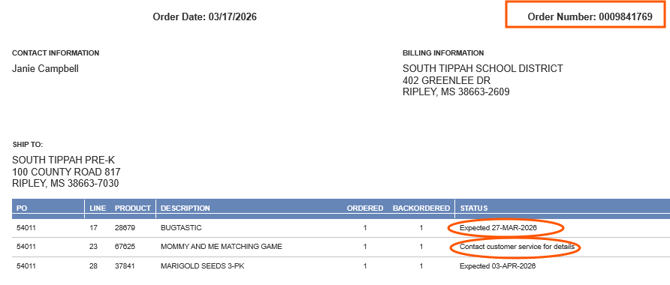
For each backordered item, the email will show one of the following:
Known Expected Due Date (within 75 days)-
- If the system has a due date and it falls within 75 days, the email will show that expected date to the customer.
“Contact Customer Service”
-
- If:
- No due date is available, or
- The internal due date is beyond 75 days, or
- The due date has past
- If:
-
-
Then the email will show “Contact Customer Service” instead of a specific date.
-
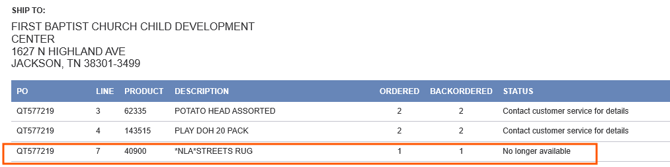
Discontinued / No Longer Available Items
- Items that are effectively no longer available will be called out as such.
- The customer will need to choose whether to:
- Select an alternative item and place a new order, or
- Remove/cancel that item.
When the Email Routes to Customer Service
- If all backordered items on the email show “Contact Customer Service”, the situation requires agent attention.
- In these cases, a ticket is created or routed to Customer Service so an agent can:
- Research updated due dates or status
- Communicate options to the customer
- Confirm whether to keep, substitute, or cancel each affected item
When you see a ticket/email with “Contact Customer Service” items:
Step 1 – Review the Lines
- Identify all lines in the email marked “Contact Customer Service”.
- Check each item’s current status and due date in the system (PeopleSoft or other inventory system).
Step 2 – Re‑Check System for Updated Dates
- Look to see if a new or updated expected due date now exists.
- If:
- A reasonable due date now exists and is within 75 days:
- You can communicate this date to the customer.
- The due date is >75 days away or still missing/uncertain:
- Treat as an extended backorder (see Section 8).
- A reasonable due date now exists and is within 75 days:
Step 3 – When to Contact Purchasing
- If the due date is:
- In the past, or
- Missing, and no PO appears to be in place, or
- Clearly unreliable (e.g., repeatedly pushed with no vendor confirmation)
Then:
- Reach out to the Purchasing team to request better information via Departmental Request Playbook.
- Allow 2–4 days for Purchasing to gather updated details from vendors.
You may hold communication to the customer for 1–3 days while waiting to see if due dates become available or Purchasing replies, but still respond to the customer within 5 business days with whatever information you have at that point.
Communicating Extended Lead Times to Customers
Once you have the best available dates (or confirmation that dates are not known):
Scenario A – Due Date Exists but Is >75 Days (Extended Backorder)
- Apologize for the delay.
- Explain that the item is on extended backorder and the expected stock date is uncertain or far out.
- Let the customer know:
- The current expectation is 90 days or longer, but dates can change and items sometimes arrive sooner.
- Present options:
- Continue to wait for the item, or
- Cancel the item or select a substitute/alternative product. (Be cautious when recommending a substitute. The end customer should be familiar with how to make a change to their order (if using a systematic purchasing system/purchase order). Do not automatically make the sub on the order without verifying the person has the permissions to authorize the change. In some cases, a new PO may need to be issued for the new item.)
Key Talking Points:
- This is a supply/availability issue, not a lack of concern for the customer.
- We are actively working with vendors but cannot guarantee an exact date.
Scenario B – No Reliable Due Date (Unknown Stock Date)
- If Purchasing confirms there is no reliable expected date, or the situation is highly uncertain:
- Explain that the expected stock date is unknown at this time and typically indicates at least a 90‑day or longer wait.
- Provide the same options: wait or cancel/replace.
When the email shows that an item is discontinued / no longer available:
- Explain that the item is no longer being produced or supplied to Kaplan.
- Offer options:
- Recommend or help locate a comparable alternative item.
- Assist the customer in:
- Placing a new order for the substitute item, and
- Canceling the discontinued item on the original order.
- Confirm the customer’s final decision and document it on the ticket/order.
Determine the reason code for the NLA using this article: “Discontinued Reason Codes (NLA/2Bnla)” For internal use only, do not share these internal reason codes with the customer.
Response Timing Expectations
- Contact Purchasing: Allow 2–4 days for new or improved vendor information.
- Customer Communication: Once you have “good/better” dates (or know they are unknown/extended), send an update to the customer within 5 business days of the ticket/email.
- If dates remain extended or unknown, you can still send a notice stating the item is on extended backorder or out of stock status and ask what the customer would like to do.
Agent Checklist (Quick Reference)
When a Backorder/Discontinued email and ticket appear:
- Review all “Contact Customer Service” lines.
- Re‑check system for current due dates.
- If due date is past/missing/no PO → contact Purchasing, allow 2–4 days.
- Once you have “good/better” dates, update customer within 5 business days:
- If due date is ≤75 days → share date and apologize for delay.
- If due date is >75 days or unknown → treat as extended backorder, offer wait/cancel/sub options.
- For discontinued items → explain not available, help find alternative or cancel item.
- Document the customer’s decision and update the order/ticket.
- Add a "promise complete date" in order notes.
- Include customer contact of who authorized.
Use these Snippets when emailing customer:
#CSNLAnotice - To send customer communication on No Longer Available item (NLA)
#CSEXTBO - To send customer communication for Extended Backorder, unknown due date
#CSEXTBODUE - To send customer communication for Extended Backorder, date known
Snapshots of the email:
Header Statement-

Item with No longer available status-
Item with expected due date-