
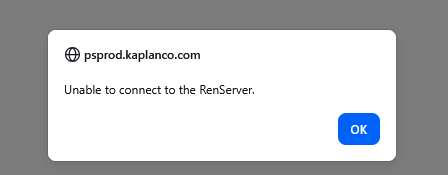
Renserver errors will occur occasionally. You can still complete the task if you follow these steps:
When to Use This Process
- You are trying to reprint an invoice or order acknowledgement.
- You have followed the normal Billing → Generate Invoices → Reprint path.
- After clicking Run, the RenServer error appears.
Proceed with the steps below instead of retrying the original process.
Step 1 – Navigate to Reprint Invoices
- From the main menu, click Main Menu.
- Select Billing.
- Select Generate Invoices.
- Choose Non‑Consolidated.
- Click Reprint Invoices.
- On the Reprint Invoices search page, select your existing Run Control ID for invoice reprints.
Step 2 – Enter Invoice and Run the Process
- In the Single Invoice section, enter the Invoice Number you need to reprint.
- Click Run.
- In the Process Scheduler Request window, select Kaplan Invoice Portrait.
- Click OK.
If you receive the RenServer error pop‑up, click OK and continue with the steps below.
Step 3 – Access the PDF via Process Monitor
- Open Process Monitor and make sure the From/To Date/Time range includes the run you just started. Click Details on the relevant row (Kaplan Invoice Portrait process).
- In the Process Detail window, click View Log/Trace.
- In the File List, click the link that ends in .PDF to open the invoice or order acknowledgement. From there, you can save or print as needed.
April 2026